Mail Tester: test your email campaign before sending
Is your email campaign ready to go? Before sending it to your entire mailing list, run one final check with SafetyMails MailTester. Send a test email, receive a score from 0 to 100, and see what you may need to adjust in the content, code, authentication, spam score, phishing signals, and desktop and mobile previews.
-
Create your account
Access the SafetyMails platform for free.
-
Send the test
Use the unique test email address generated for you.
-
Review the analysis
Get the report in just a few minutes.
Each test uses 100 credits from your SafetyMails account.
Run an email spam test before your final send
An email campaign can look ready and still contain problems that only become apparent when it is sent. A misconfigured link, missing authentication, broken code, a heavy image, or even suspicious wording may affect how the message is displayed and trigger antispam filters.
That is why an email spam test should happen before the campaign goes out—not after your mailing list has already received the message. MailTester works as a final review: it analyzes the email structure, shows the spam score, and highlights elements that deserve attention before your campaign reaches its audience.
In practice, it helps marketing teams move beyond “everything looks fine” and make decisions based on a concrete analysis before sending.
Report areas
-
Spam score
Understand the message’s overall risk level.
-
Authentication
Review SPF, DKIM, and DMARC.
-
Code
Identify issues in your HTML.
-
Preview
See how the message appears on desktop and mobile.
-
Links
Review URLs, redirects, and possible blocks.
-
Security
Identify phishing signals before sending.
How SafetyMails MailTester works
The process is straightforward. Create your account, activate MailTester, copy the unique test email address generated for you, and send your campaign to it from your usual email marketing platform. You will then receive an analysis of the main issues to review before the final send.
Activate MailTester
Open the MailTester area in the SafetyMails platform and activate the feature.
Copy the test address
Use the unique email address generated to receive your tests.
Send your test campaign
Send the email from the email marketing, CRM, or automation tool you normally use. This allows the test to reflect the message and sending setup used in your real campaign.
Review the report
See the result in minutes and make any necessary adjustments before sending the campaign to your audience.
An email spam test that fits your workflow
MailTester can become part of your existing email marketing process. You do not need to switch sending tools, import contacts, or set up a separate operation. Simply send the test message to the email address created for you and wait a few minutes for the analysis.
The email tester is another SafetyMails feature designed to help email marketing teams improve performance and deliverability. Like email verification, an email spam test is an important step for teams committed to better results. It becomes a quick review stage instead of a time-consuming task on the campaign calendar.
What the Mail Tester report analyzes
The report is more than a score. It reviews technical, visual, and content signals to help your team understand what could affect the campaign before it is sent.
This type of email deliverability test involves more than one factor. A strong result may depend on correct authentication, safe links, well-structured HTML, properly sized images, coherent content, and the absence of phishing signals. MailTester organizes these findings in a report that is easier to interpret and act on.
Spam score
See a score from 0 to 100 to understand the message’s overall risk level. The spam score reflects signals that may work against your email campaign.
Desktop and mobile preview
See how the message appears on desktop and mobile. The preview helps identify broken layouts, disproportionate images, and readability issues before the send.
Source code
Review the structure of the email’s HTML. Unclosed tags, excessive code, confusing formatting, and incompatible elements can affect how the message is read and displayed.
DNS analysis
Review settings associated with the sending domain. DNS analysis helps determine whether the technical configuration is consistent with the send.
Authentication
Check SPF, DKIM, and DMARC. These records help mailbox providers recognize that the message is authorized by the sending domain.
Links
Review URLs, redirects, and possible blocks. Suspicious, broken, or poorly formatted links can reduce trust in the message.
Security
Identify phishing signals before sending. The report highlights elements that may appear suspicious to filters, mailbox providers, or recipients.
How to interpret your Mail Tester score
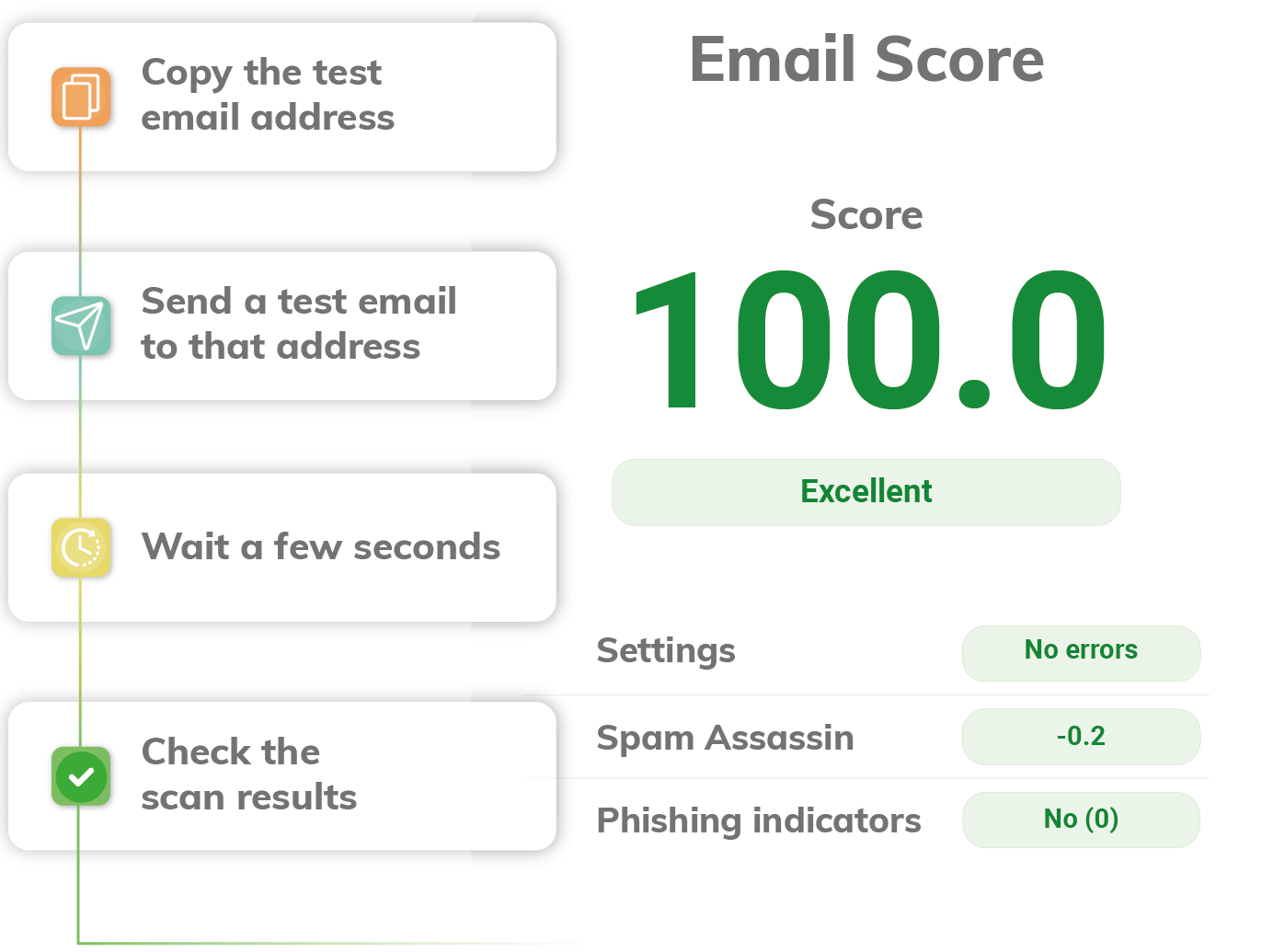
The MailTester score ranges from 0 to 100 and summarizes the analysis of your email campaign. It considers signals from different parts of the report, including technical settings, antispam filters, SpamAssassin, and phishing indicators. The score should not be treated as an isolated number; it is a summary of the risks identified before sending.
A high score means the message performed better in the checks included in the analysis. A low score—or warnings such as “antispam filtering likely” or “high chance of blocking”—means you should review the diagnosis before sending the campaign to your mailing list.
The spam score helps you prioritize, but the technical details show what needs to be corrected. MailTester works as an email spam checker that helps your team address issues before the campaign goes out.
0–50: High chance of blocking
The analysis found significant risk signals. Review the diagnosis before sending to your mailing list.
51–79: Antispam filtering likely
The campaign may contain issues that increase the risk of blocking or affect how the message is displayed.
80–95: Good result
The message performed better in the analysis, but you should still review the warnings and recommendations.
96–100: Excellent
The report found no significant issues in the main areas analyzed.
When to use a mail tester in email marketing
A mail tester can support different stages of your email marketing workflow, especially when a campaign has commercial impact, involves a large audience, or follows a technical change. The idea is simple: test the email before sending it to recipients and fix problems before they affect your results.
-
Newsletters
Run a test before sending recurring content. Even a simple newsletter may contain broken links, heavy images, or display issues.
-
Promotions
Test campaigns that include offers, coupons, several buttons, or multiple URLs. These emails often contain more elements that require review.
-
Product launches
Before announcing a product, feature, or important initiative, run an email deliverability test and review the critical areas.
-
Automated campaigns
Test messages before activating workflows in email marketing, CRM, or automation platforms. A template error can remain active and affect many recipients over time.
-
New layouts
Whenever you change the HTML, visual identity, block structure, or template, test the message before the final send.
-
New senders
Run a test after changing the domain, subdomain, sender, or sending configuration. Small technical changes can affect how the message is analyzed.
Credits to verify emails
- Verify up to 1,000 emails
- Credits do not expire
- Best reports
- Best verification algorithm
Credits and access
How much does it cost to use MailTester?
MailTester uses the credits available in your SafetyMails account. The same credits can be used for email verification and MailTester. Each email campaign submitted for analysis uses 100 credits.
If you plan to run 10 tests per month, you will need at least 1,000 credits in your account. Review the available credit packages and choose the option that best fits your workflow.
The calculation is simple: multiply the number of tests you expect to run by 100 credits. If you correct the campaign and submit a new version for analysis, the new test will also use 100 credits. This allows your team to test, adjust, and compare versions before the final send while keeping credit usage under control.
Best practices for more accurate MailTester results
MailTester is most useful when the report is reviewed in layers. Before changing the campaign copy, determine whether the problem lies in the sender identity, technical structure, links, or list quality. This order prevents your team from spending time rewriting sentences when the real risk is related to authentication, the domain, or the HTML.
Start with the sender identity
If the report identifies issues with SPF, DKIM, DMARC, or the sending domain, treat them as a priority. Antispam filters first assess whether the message appears authorized and consistent. When this layer fails, changing the subject line, CTA, or wording is unlikely to solve the main problem.
Review the HTML structure
An email can look good in an editor and still perform poorly in an inbox. Heavy images increase loading time, and a layout built almost entirely with images may appear empty when a mailbox provider blocks automatic image loading.
Maintain a healthy balance between text and images, add alternative text to images, and make sure the message remains understandable when visual elements do not load. The source code should also be clean: broken HTML, conflicting styles, and unclosed blocks can affect both the preview and how filters interpret the message.
Check links and redirects
Shortened URLs, redirect chains, domains that differ from the sender’s domain, and broken links can make a message look less trustworthy. Before sending, check not only whether each link opens, but also where it leads and whether that path makes sense for your brand.
Review content and pressure signals
Aggressive wording, excessive urgency, too many calls to action, and a poor text-to-image ratio may affect the spam score. The goal is not to hunt for one “forbidden” word, but to evaluate the message as a whole.
Compare versions
After making a significant change, run a new test and compare the diagnosis. The goal is not to chase a perfect score at any cost, but to understand whether the change reduced the risk or simply produced a different warning.
Keep your mailing list healthy
Mailing list quality is not part of the MailTester analysis, but it directly affects email marketing performance. Even a well-built campaign may struggle when it is sent to invalid, outdated, disposable, nonexistent, or disengaged addresses.
In addition to testing the message before sending, keep your mailing lists clean, current, and well organized. Email verification helps remove problematic contacts before they generate bounces, damage your sender reputation, or affect deliverability after the send.
Test your email campaign before your next send
Create your free SafetyMails account, send your campaign to the unique test address, and receive your MailTester report in just a few minutes.
Test your campaign with MailTesterFAQ
If you don't see an answer to your question, please have a look at our documentation or get in touch through our live chat.
A mail tester is a tool that analyzes an email campaign before the final send. SafetyMails MailTester receives the message through a unique test address and returns a report with a score, spam indicators, desktop and mobile previews, technical analysis, authentication checks, links, and possible risk signals.
An email spam test identifies elements that may make a message look suspicious to antispam filters. It helps teams review content, HTML code, links, authentication, and phishing signals before the campaign is sent to a mailing list.
Open MailTester in SafetyMails, copy the unique test address, and send the campaign to it from your usual email marketing platform. MailTester analyzes the message and returns a report so you can review the findings before sending it to your audience.
No. No email spam checker can guarantee inbox placement. Delivery also depends on factors such as domain reputation, recipient engagement, sending history, mailbox provider behavior, sending volume, and mailing list quality. MailTester supports the pre-send review by showing risks that can be addressed before the campaign goes out.
MailTester analyzes the message before it is sent. Email verification analyzes the mailing list and identifies invalid, nonexistent, temporary, disposable, or otherwise problematic addresses. The two processes complement each other: one supports message quality, while the other supports list quality.
A spam score summarizes the risk indicators found during the analysis of an email campaign. In MailTester, the score ranges from 0 to 100 and considers technical signals, content, authentication, SpamAssassin, and phishing indicators. Read it together with the full report to understand what may require attention.
Yes. The report helps you review authentication records such as SPF, DKIM, and DMARC, as well as DNS-related findings. These records matter because they help mailbox providers determine whether the message is authorized by the sending domain.
Yes. You can use MailTester with your current email marketing, CRM, or automation platform. Copy the test address generated by SafetyMails and send the campaign to it as you would send a normal test message.
Sending the test from your usual platform allows MailTester to analyze the message and technical setup used in the real campaign. This gives your team a more representative pre-send review.
Each email campaign submitted for analysis uses 100 credits from your SafetyMails account. If you update the message and test it again, the new submission will also use 100 credits.
Repeat the test after a significant change to the subject line, HTML, images, links, sender, domain, or sending platform. It is also useful to test again after correcting important warnings so that you can compare the results.
Yes. The report includes desktop and mobile previews so your team can see how the message appears in different formats. This is important because an email may look correct in the editor but still show broken layouts, disproportionate images, or readability issues in the inbox.